JSON to GIF for Shareable Lottie Motion

Convert JSON to GIF from your Lottie animation. Choose the clip, background and output size, preview the loop and download an animated image.

Loading studio…

Compare Lottie Playback with a GIF Export

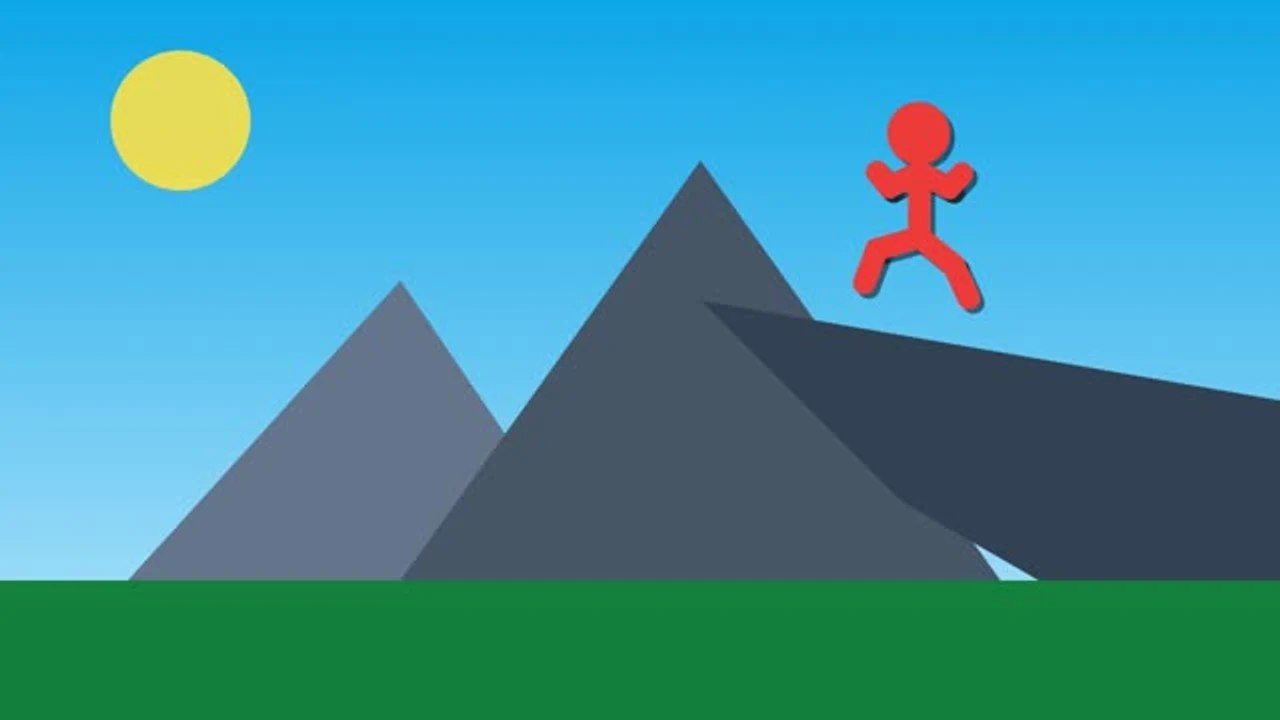
See a Lottie animation beside the GIF exported from the same composition. This JSON to GIF example pairs the original motion with its rendered loop so you can compare movement and background.

Loading example…

How to Convert JSON to GIF

Make your GIF

Load Lottie JSON

Upload a supported Lottie animation or paste its JSON source. Check that the composition appears correctly in the preview before choosing the frames you want to export.

Prepare a short loop

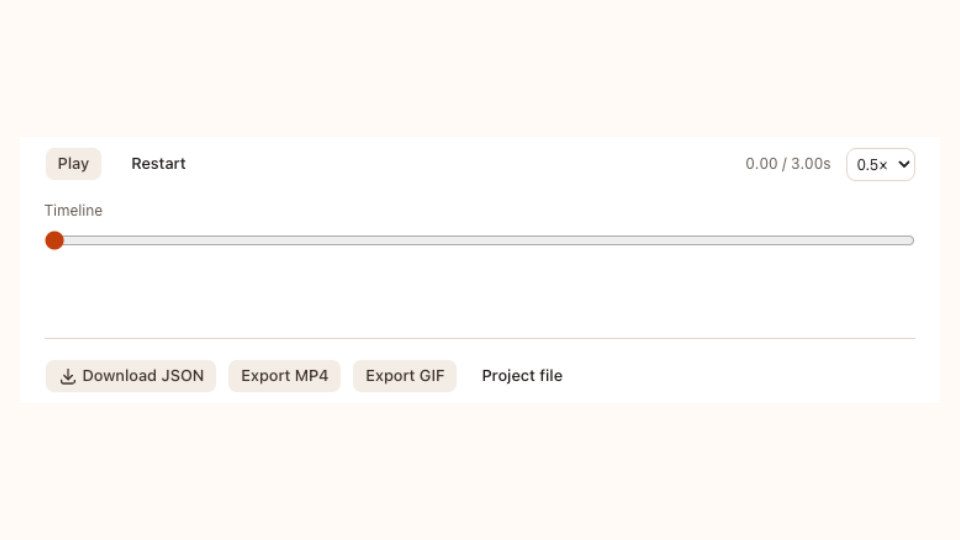
Set a suitable background, duration, size and frame rate. Scrub the timeline to inspect the start and finish, especially if the GIF needs to repeat without a distracting jump.

Download the animated image

Render the GIF locally and download the result. Open it in the message, document or application where you plan to use it to check its playback and file size.

Lottie to GIF with Preview and Loop Controls

GIF export and project file download actions in SVG Animation

A Lottie to GIF Converter with Motion Preview

Use the Lottie to GIF converter to inspect playback and the background first. Scrub to a key frame and choose a useful duration, avoiding an empty opening or movement that ends before the action reads clearly.

Make your GIF
Bitcoin icon

Use an Animated Image

Use JSON to GIF for a destination that accepts an animated image but has no Lottie player. Keep the original JSON for later changes, and check that the receiving application displays the animation rather than a still frame.

Make your GIF
Fingerprint icon

Balance Detail and File Size

Balance JSON to GIF detail and file size through dimensions, duration and frame rate. A compact interface loop may suit smaller settings. Check gradients, thin outlines and small text in the downloaded image after GIF encoding.

Make your GIF

Make JSON to GIF Fit Your Destination

Use JSON to GIF for a shareable animated image. Keep the source editable, inspect the repeat and choose capture settings for the size your audience will see.

Review the loop boundary

Preview the animation before encoding. Check a transition, opening frame or final pose while the original Lottie motion remains available to play and inspect.

Set a suitable background

Choose an animated image for placements that support looping motion. Keep a rendered copy ready for a message, document or compatible web page.

Weather icon

Keep JSON for later edits

Save the original or edited composition beside the GIF when you need to change a color, layer or timing detail later.

Export locally for free

Supported Lottie playback and GIF conversion do not use AI credits. Your browser renders and encodes the animation frames.

Refine your source colors or timing in the Lottie Editor, or choose video output instead with JSON to MP4.

JSON to GIF Questions

SVG Animation logo

Start Your JSON to GIF Conversion

Open your Lottie animation, inspect the loop and download a shareable image. Keep the original JSON for another edit or a different export.

Make your GIF