MP4 to Lottie with Embedded Video Frames

Convert MP4 to Lottie by capturing your video as embedded image frames. Preview a short clip and download self-contained JSON for a compatible Lottie player.

Loading studio…

Compare Video with Embedded Frame Playback

Compare a short clip before and after MP4 to Lottie conversion. The JSON plays sampled image frames from the same video, preserving its visible sequence as raster images rather than vector shapes.

Loading example…

How to Convert MP4 to Lottie

Open your video

Choose a short video

Upload a supported video file within the 25 MB input limit. Use a concise clip with the movement you want to preserve rather than a long recording.

Capture the frames

Capture up to ten seconds at ten frames per second, with width up to 512 pixels and height up to 1024. Inspect playback before downloading the image-based result.

Download the Lottie JSON

Export the composition with raster images embedded in the JSON. Test it in your intended compatible player and keep the original MP4 for future changes.

Video to Lottie with Self-contained Image Frames

Video frame capture controls in SVG Animation

A Video to Lottie Converter for Short Clips

Start with a video your browser can decode. The video to Lottie converter captures visible frames and builds a composition from them, so you can inspect how the selected size and sampling affect your original movement.

Open your video
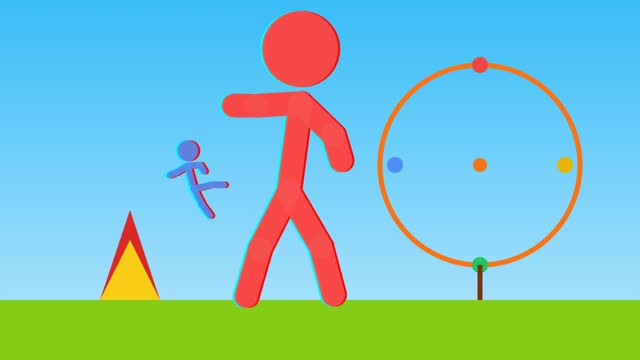
Stick figure scene

Keep Frame Assets Together

MP4 to Lottie embeds frame images inside the JSON, keeping the playback assets together. Use a short sequence and check the downloaded size, since raster frames can make the result larger than the original compressed video.

Open your video
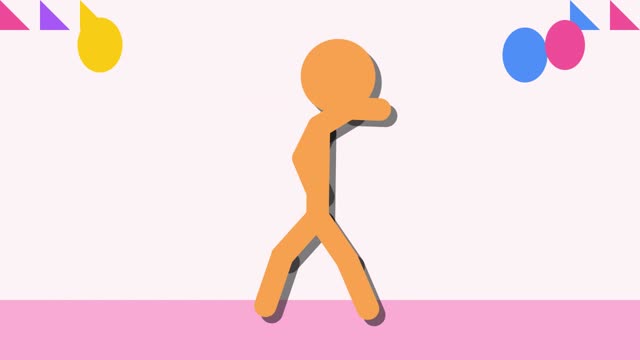
Dancing stick figure

Choose MP4 to Lottie for a Compatible Player

Choose MP4 to Lottie when an integration specifically needs JSON and supports embedded images. Test the captured motion in that player before using it on a page, with the original video available for ordinary playback and future edits.

Open your video

Review MP4 to Lottie for Your Integration

Use MP4 to Lottie for a defined player requirement. Inspect the captured frames, keep assets together and test the actual download at the size where it will appear.

Preserve visible movement

Inspect frame playback before handing off JSON. Check fast movement and fine details at the dimensions your integration will use for the final animation.

Inspect the captured sequence

Keep captured image assets inside the JSON. A self-contained file avoids a separate folder of frames for the receiving player to locate and load.

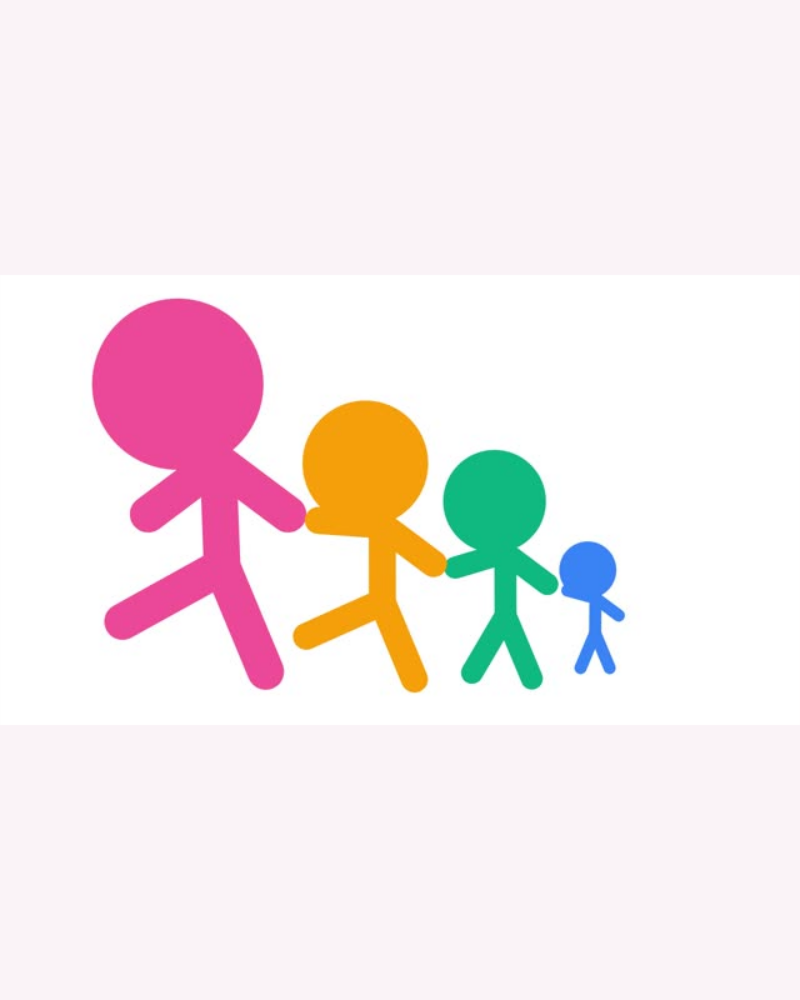
Stick figures following a leader

Embed the frame assets

Keep the sampled images inside a self-contained Lottie file rather than managing an additional folder of external assets.

Convert without AI credits

Local frame capture and JSON export are free. They do not call an AI tracing model or charge credits for the conversion.

Inspect the image-based JSON output in Lottie Preview, then make supported layer and trim changes in the Lottie Editor.

MP4 to Lottie Questions

SVG Animation logo

Prepare Your MP4 to Lottie Clip

Open a short clip, inspect its embedded frame playback and download the JSON. Keep your original video for visual changes and future edits.

Open your video