Review Before You Render
Start JSON to MP4 with a close look at the composition. Scrub to a frame, replay a transition and check the background so an empty opening or clipped shape can be corrected before the video export.
Convert your JSONConvert JSON to MP4 from your Lottie animation. Preview the motion, choose a background and export a short video with your preferred size and timing.
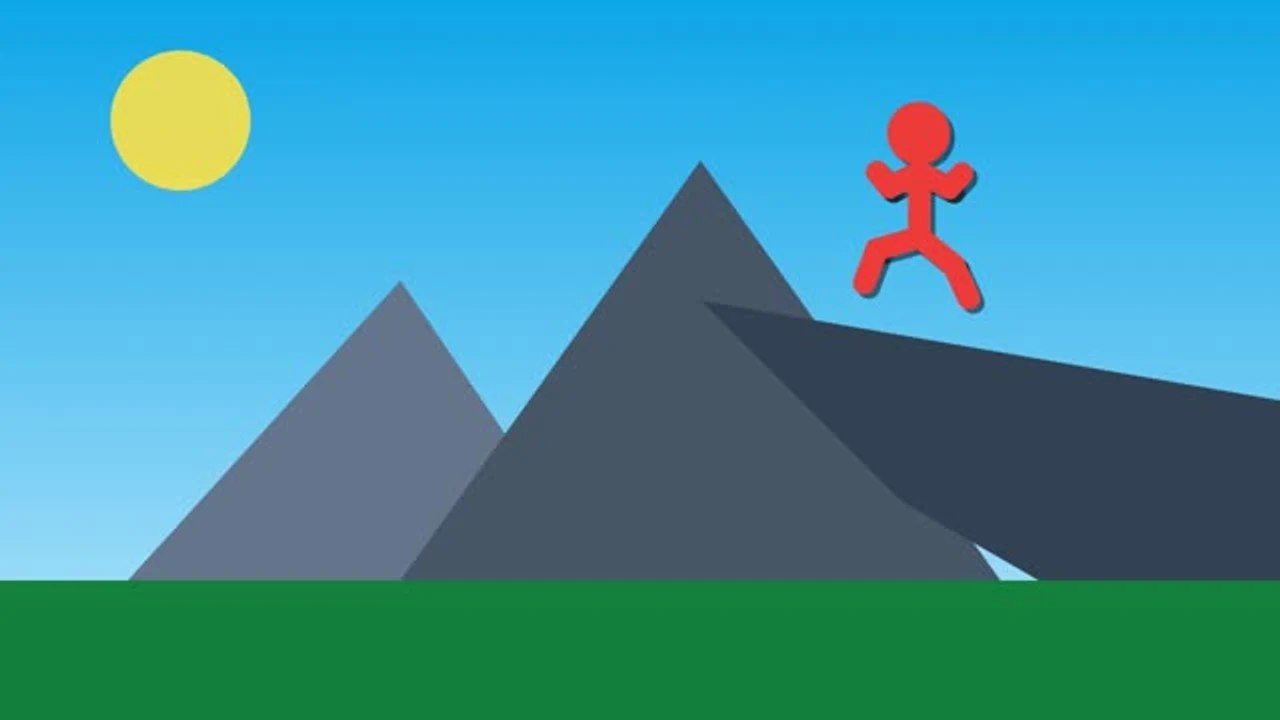
See a Lottie composition beside the MP4 exported from the same file. This JSON to MP4 comparison keeps the artwork and background paired so you can inspect the captured movement.
Loading example…
Upload a supported Lottie JSON animation or paste its source. Generic JSON data is not an animation; the file needs a valid composition with dimensions, frames and layers.
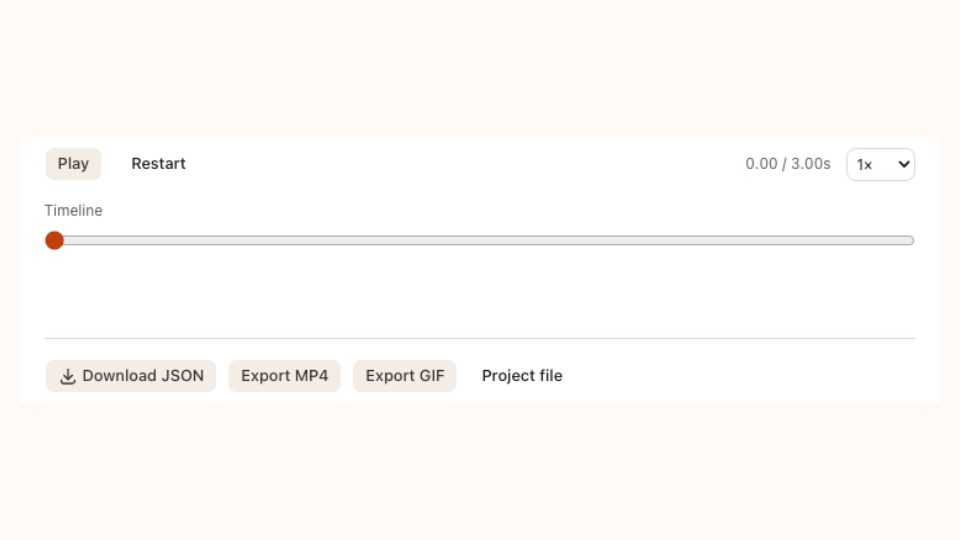
Play the preview and scrub the timeline to inspect the animation. Choose a background, output size, frame rate and clip duration while keeping the export within the supported limits.
Start the local export and let the browser encode the frames. Download the finished video, then open it in the player or application where you plan to use it.
Start JSON to MP4 with a close look at the composition. Scrub to a frame, replay a transition and check the background so an empty opening or clipped shape can be corrected before the video export.
Convert your JSON
Use Lottie to MP4 conversion for a slide deck, video timeline or message that needs ordinary video playback. Keep the original JSON beside the rendered clip, ready for a color or design change in the source.
Convert your JSON
Set JSON to MP4 duration, dimensions and frame rate for your destination. A compact interface loop may need only a few seconds, while a logo reveal needs its opening sequence. Check the downloaded video for fine strokes and lettering.
Convert your JSONUse JSON to MP4 when your audience needs a video file. Keep the editable Lottie source, inspect the clip and choose settings that fit its actual placement.
Preview movement before rendering. Pause or scrub to inspect a detail, then adjust the background and capture settings for the file you need.
Share rendered motion where a Lottie player is unavailable. A standard video file fits presentations, messages and further editing in your chosen video application.

Place the downloaded MP4 in a presentation or editing workflow that accepts ordinary video files without a separate animation runtime.
Previewing and converting supported Lottie files do not spend AI credits. Encoding uses your browser and the device you are working on.
Before exporting, inspect your JSON in Lottie Preview, or adjust its colors and trim range in the Lottie Editor.
JSON to MP4 expects Lottie animation data with a composition, layers and timing. Ordinary data exports, API responses and configuration files contain no sequence to render. Open your Lottie JSON in the preview and confirm that its artwork plays before preparing the video.
Lottie JSON stores instructions and assets for an animation player, while MP4 contains encoded video frames. JSON to MP4 makes the result easier to share with video applications. Keep the original JSON when you need editable layers or future web playback through a Lottie player.
JSON to MP4 uses a visible background rather than an alpha channel. Choose a color that matches your destination, then inspect the animation against it before rendering. Keep Lottie JSON for a compatible player when transparent vector playback is essential to the placement.
The converter creates a silent video from the animation frames. Add music or narration after downloading if your project needs sound. JSON to MP4 works for decorative motion and visual previews that can be shared or placed without a separate audio track.
JSON to MP4 supports clips up to ten seconds. Set a duration that covers the movement you want to share and check the opening and closing frames. Longer compositions need separate clips or another workflow that can render the complete sequence you require.
JSON to MP4 exports support up to 768 pixels and 30 frames per second. Higher settings require more processing, so choose them for the actual display size. Check small text, thin outlines and subtle motion in the downloaded video after encoding.
Use a self-contained Lottie file with embedded assets. JSON to MP4 captures the supported preview, so missing images or unsupported effects should be corrected before export. Inspect the source or return to the authoring application if part of the composition does not render.
Use Lottie Editor for supported static colors, layer names, visibility and timeline trimming. Replay the edited composition before JSON to MP4 export, especially after changing a shared color. Keep the edited JSON when another output or a later design revision may be needed.
The video contains rendered frames rather than editable Lottie shapes and keyframes. A video editor can trim or combine it, but vector changes need the original JSON. Save that source beside JSON to MP4 output for future color, sizing or layout adjustments.
Yes. JSON to MP4 preview and local exports do not spend AI credits or require a purchase. The converter renders frames in your browser. Processing speed depends on the composition and your device, so let the export finish before navigating away or closing the page.
Download a project file to preserve the source and supported settings. Import it later for another JSON to MP4 export with a different background, duration or size. Keep the original Lottie JSON too, since the rendered video alone cannot restore its editable composition.

Open your Lottie animation, inspect its motion and download a video. Keep the original source available for future palette, timing or layout changes.
Convert your JSON